
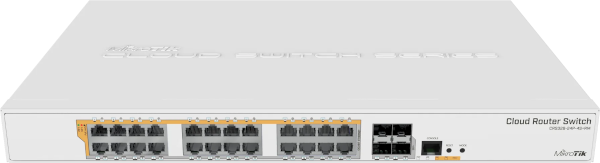
CRS328-24P-4S+RM
Safety Warnings
Before you work on any equipment, be aware of the hazards involved with electrical circuitry, and be familiar with standard practices for preventing accidents.
Ultimate disposal of this product should be handled according to all national laws and regulations.
The Installation of the equipment must comply with local and national electrical codes.
This unit is intended to be installed in the rackmount. Please read the mounting instructions carefully before beginning installation. Failure to use the correct hardware or to follow the correct procedures could result in a hazardous situation to people and damage to the system.
This product is intended to be installed indoors. Keep this product away from water, fire, humidity or hot environments.
Use only the power supply and accessories approved by the manufacturer, and which can be found in the original packaging of this product.
Read the installation instructions before connecting the system to the power source.
We cannot guarantee that no accidents or damage will occur due to the improper use of the device. Please use this product with care and operate at your own risk!
In the case of device failure, please disconnect it from power. The fastest way to do so is by unplugging the power plug from the power outlet.
It is the customer's responsibility to follow local country regulations, including operation within legal frequency channels, output power, cabling requirements, and Dynamic Frequency Selection (DFS) requirements. All Mikrotik devices must be professionally installed.
Quick start
- Connect with your PC to any Ethernet port;
- Connect the device to a power source;
- Configure the IP settings of your network card to 192.168.88.2/24;
- Use WebFig in a web browser or the "WinBox" configuration tool https://mt.lv/winbox; multiple configuration methods are available to ensure accessibility;
- Open http://192.168.88.1 in a web browser to start setup. If the IP address is unavailable, use WinBox and choose the "Neighbors" tab to find the device. Proceed to connect using the MAC address. The username is "admin", and there is no password (or, for some models, check user and wireless passwords on the sticker);
- For a manual update of the device, visit mikrotik.com, select your model, and locate the required packages in the "Downloads" section;
- Upload downloaded packages to the WebFig or WinBox "Files" menu and reboot the device;
- By upgrading your RouterOS software to the latest version, you can ensure optimal performance, stability, and security updates;
- Set up your router password.
Mounting
The device is designed to use indoors and it can be mounted in a rackmount enclosure using provided rack mounts, or it can be placed on the desktop. Please attach rubber pegs on the bottom of the router if the desired placement is on the flat surface or use a Phillips screwdriver to attach rackmount ears on both sides of the device if designated use is for rackmount enclosure:
- Attach rack ears to both sides of the device and tighten four screws to secure them in place, as shown in the picture.
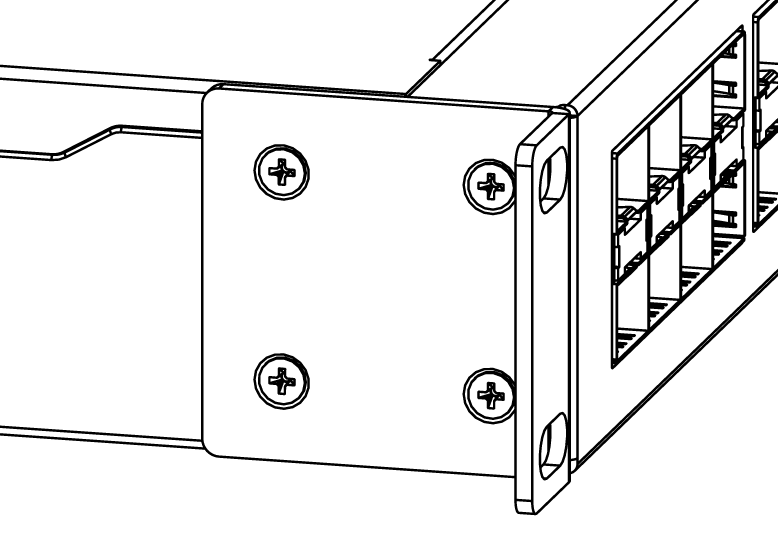
- Place the device in the rackmount enclosure and align with the holes so that the device fits conveniently.
- Tighten screws to secure it in place.
The device has no protection from water contamination, please ensure the placement of the device in a dry and ventilated environment.
We recommend Cat6 cables for our devices.
Mounting and configuration of this device should be done by a qualified person.
Powering
The unit is equipped with one IEC type AC power input, which accepts 100-240 V ⏦ powering (~ 50/60 Hz 7 A max). The power consumption of this device itself under maximum load is up to 44 W.
Configuration
Full documentation for both RouterOS and SwOS is available at: https://mt.lv/help.
You can configure the device using WebFig in a web browser or the "WinBox" configuration tool https://mt.lv/winbox; multiple configuration methods are available to ensure accessibility.
To start setup, open http://192.168.88.1 in a web browser to start setup. If the IP address is unavailable, use WinBox and choose the "Neighbors" tab to find the device. Proceed to connect using the MAC address. The username is "admin", and there is no password (or, for some models, check user and wireless passwords on the sticker).
The device is equipped with an RJ45 serial port, set by default to 115200 bit/s, 8 data bits, 1 stop bit, no parity. For recovery purposes, it is possible to reinstall the device from the network, see the Reset button.
Marvell Prestera switch chip features user manual
The device supports booting either RouterOS (for full routing and switching functionality) or SwOS (for switch-only operation). By default, the device boots into RouterOS, but you can switch to the other operating system as follows:
From SwOS: Go to the System menu and click the Boot RouterOS button at the bottom of the page.
From RouterOS: Open System → RouterBOARD → Settings and select Boot OS.
It is also possible to choose the operating system and configure other boot options using the serial console menu.
Power output
This device can supply PoE powering to external devices from its Ethernet ports. The output voltage will be selected automatically, depending on what kind of voltage the connected device requires. The device can power both 802.3af/at devices and devices that accept passive PoE power. If necessary, the output voltage can be switched manually. By default the PoE mode is set to auto, it will not damage devices and will auto-detect devices with PoE support and the needed voltage. Once a PoE device is detected, it will be powered and the PoE LEDs will turn on.
The PoE out ports is grouped in three PoE out groups of 8 ports each (PSE8). Total device PoE limit = 450w (150w per PSE8 group).
Each port can provide up to 30 W with high voltage, and 26,5 W with low voltage power output.
Buttons and Jumpers
Reset button:
- Hold this button during boot time until the USR LED light starts flashing, release the button to reset RouterOS configuration.
- Keep holding the button for 5 more seconds or until the user LED turns off, then release it to make the RouterBOARD look for Netinstall servers. The first Ethernet port is used for the Netinstall process. See RouterOS documentation about using the Netinstall recovery utility.
Regardless of the above option used, the system will load the backup RouterBOOT loader if the button is pressed before power is applied to the device. Release the button before LED begins to flash, to only load backup RouterBOOT without resetting. This is useful for RouterBOOT debugging and recovery.
Mode button:
The action of the mode buttons can be configured from RouterOS software to execute any user-supplied RouterOS script. You can also disable this button. The mode button can be configured in RouterOS menu /system routerboard mode-button
Extension slots and ports
| Product Code | CRS328-24P-4S+RM |
|---|---|
| CPU | 98DX3236, 800 MHz |
| CPU Architecture | ARM 32bit |
| CPU Core Count | 1 |
| Switch Chip Model | 98DX3236 |
| RAM | 512 MB |
| Storage | 16 MB Flash |
| 1G Ethernet (RJ45) Ports | 24 |
| 10G SFP+ Ports | 4 |
| Serial Console (RJ45) | 1 |
| Operating System | RouterOS (license level 5) / SwitchOS (Dual boot) |
| Operating Temperature | -20 °C to +60 °C tested |
| Case Dimensions | 443 × 300 × 44 mm |
| PoE-Out Support | 802.3af/at, Passive PoE on all 24 Ethernet ports |
Please visit help pages for MikroTik SFP module compatibility table: MikroTik wired interface compatibility
LED indicators
- PWR LED is lit when the router is powered on.
- The use of LEDs can be configured from RouterOS.
- Triangle LEDs (top row) indicate PoE out status. Green LED indicates that the respective port uses low voltage, a red LED indicates high voltage. Flashing single green LED: problem to start a low voltage device. Flashing single red LED: problem with high voltage device.
- The square port LEDs (bottom row) indicate the individual Ethernet, SFP port activity.
- FAN FAULT LED indicates a problem with any of the cooling fans.
- PoE FAULT LED indicates an exceeded overall max PoE output limit. Port PoE-out priorities will work in 3 independent sections (8 ports each) and overload will happen in any section that breach 150W consumption
Accessories
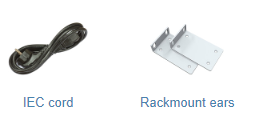
Package includes the following accessories that come with the device:
Operating system support
The device supports dual boot with SwOS version 2.9 and later, as well as RouterOS version 6 and RouterOS version 7 or later. The specific factory-installed RouterOS version is indicated in the RouterOS menu under /system resource. Other operating systems have not been tested and are not officially supported.