
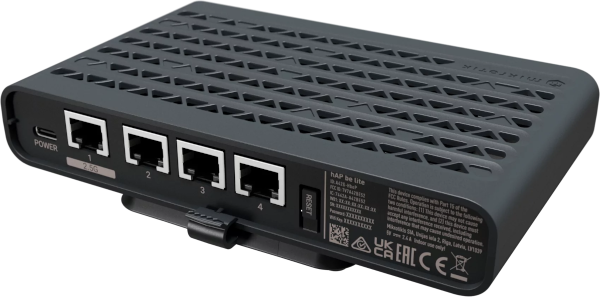

hAP be lite - A42G-HbeP
The most affordable Wi-Fi 7 router & access point for networks that need the flexibility and the power of RouterOS. USB-C powering, 2.5 Gigabit & Gigabit Ethernet, Wi-Fi 7 Multi-Link Operation, BE3600
The hAP be lite brings modern Wi-Fi 7 performance and RouterOS flexibility into a compact and affordable platform built for setups where space, style, speed, and budget all matter equally. The compact design, low power consumption (up to 12 W), and USB-C powering make placement simple almost anywhere.
Wi-Fi 7 built to deliver more & cost less
Powerful dual-band Wi-Fi 7 antennas and WiFi 7 Multi-Link Operation (MLO) deliver BE3600-class wireless performance for laptops, phones, tablets, and other everyday devices.
Our Wi-Fi 7 products are designed for today’s extremely crowded wireless environments, where more devices than ever are competing for the same airspace. Even in busy areas, Wi-Fi 7 helps keep connections smooth and responsive. The hAP be lite combines dual-chain 2.4 GHz and triple-chain 5 GHz radios, giving additional wireless capacity where modern devices need it most.
On the wired side, we have three Gigabit Ethernet ports and one 2.5 Gigabit Ethernet port for high-speed uplinks, workstations, NAS devices, or other demanding situations.
Under the hood, the hAP be lite runs on a modern dual-core ARM CPU at 950 MHz with 512 MB of RAM, delivering reliable performance for advanced networking tasks and heavy traffic.
But hardware is only part of the story. With RouterOS, you get far more than basic wireless connectivity. Build VLANs, configure VPNs, shape traffic, apply advanced firewall rules, automate tasks with scripting, and fully customize your setup to match your exact needs.
No artificial limits. No subscriptions, paywalls or locked features. RouterOS gives you full control, whether you are managing a single compact setup or a much larger network.
You also get access to the updated CAPsMAN for centralized management of multiple MikroTik access points from a single interface.
Powering
- Number of DC inputs: 1 (USB-C).
- USB C input Voltage: 5 V.
- Max power consumption 12 W.
Setup
- Ensure your Internet Service Provider (ISP) allows hardware changes and automatically assigns an IP address;
- Connect the ISP cable to the Ethernet1 port;
- Connect the device to the power source;
- Connect to the device through any of the ports, excluding Ethernet1, or the wireless network "MikroTik-..." (ensure to check the wireless passwords on the sticker);
- Establish a connection using a mobile application. Alternatively, use WebFig in a web browser or the "WinBox" configuration tool at https://mt.lv/WinBox;
multiple configuration methods are available to ensure accessibility; - Start configuration within the chosen tool, using the default IP address 192.168.88.1. If the IP address is unavailable, use WinBox and choose the "Neighbors" tab to find the device;
- Proceed to connect using the MAC address. The username is "admin", and there is no password (or, for some models, check user and wireless passwords on the sticker);
- Click the "Check for updates" button and update RouterOS to the latest version;
- For a manual update of the device, visit mikrotik.com, select your model, and locate the required packages in the "Downloads" section;
- Upload downloaded packages to the WebFig or WinBox "Files" menu and reboot the device;
- By upgrading your RouterOS software to the latest version, you can ensure optimal performance, stability, and security updates;
- In the "QuickSet" menu set up the following: Choose your country, to apply country regulation settings;
- Set up your wireless network password in the left field;
- Set up your router password in the bottom field.
Configuration
Full RouterOS documentation is located here: https://mt.lv/help
The device comes pre‑configured as a router: the WAN port (Ethernet1) is protected by a firewall and runs DHCP, while all other Ethernet ports and the wireless interface are part of the LAN bridge.
To set up the device, connect the ISP cable to the Ethernet1 port and plug the unit into a power source. Then access the device using any Ethernet port except Ethernet1, or join the default Wi‑Fi network named “MikroTik‑…”. The Wi‑Fi password is printed on the sticker attached to the device.
You can connect via the mobile app, WebFig in a web browser, or the WinBox tool (download from https://mt.lv/WinBox). Start configuration with the default IP address 192.168.88.1; if that address is unreachable, open WinBox, go to the “Neighbors” tab, and discover the device.
For recovery, the firmware can be reinstalled over the network using the Reset button.
Extension Slots and Ports
| Parameter | Value |
|---|---|
| Product Code | A42G-HbeP |
| Architecture | ARM 32bit |
| CPU | AN7563PT |
| CPU Core Count | 2 |
| CPU Threads Count | 2 |
| CPU Frequency | 950 MHz |
| Switch Chip Model | AN7563PT |
| RAM | 512 MB |
| Storage | 128 MB NAND |
| 2.5G Ethernet Port | 1 |
| 1G Ethernet ports | 3 |
| Wireless 2.4 GHz | 688 Mbit/s, 2 chains, 802.11b/g/n/ax/be, 4.4 dBi, MT7991, Wi-Fi 7 |
| Wireless 5 GHz | 2882 Mbit/s, 3 chains, 802.11a/n/ac/ax/be, 7 dBi, MT7991, Wi-Fi 7 |
| WiFi speed | BE3600 |
| Operating System | RouterOS v7 |
| RouterOS License | Level 4 |
| Operating Temperature | -40 °C to +50 °C |
| Cooling | Passive |
| DC Inputs | 1 (USB-C) |
| DC Jack Voltage | 5 V |
| Max Power Consumption | 12 W |
| Certifications | CE, FCC, IC, EAC, RoHS |
| Ingress Protection | IP20 |
| CPU Temperature Monitor | Yes |
Buttons and jumpers
The reset button has three functions:
- Hold this button during boot time until the green LED light starts flashing, release the button to reset RouterOS configuration.
- Keep holding the reset button until the LED turns solid, then release it to enable CAP mode. The device will then start searching for a CAPsMAN server.
- To reinstall RouterOS using the Netinstall utility, enter the device into BOOTP mode. There are two types of booters available: the regular booter and the backup booter.
- Regular booter - Power on the device, wait 1-2 seconds, then press and hold the Reset button. Wait until the System LED is blinking green, then turns solid "On". When the green LED turns "Off", release the Reset button - the device will enter BOOTP mode.
- Backup booter – Power off the device, press and hold the Reset button, then power it on. Wait until the System LED is blinking green, then solid "On". When the green LED turns "Off", release the Reset button - the device will enter BOOTP mode using the backup booter.
Regardless of the above option used, the system will load the backup RouterBOOT loader if the button is pressed before power is applied to the device. Useful for RouterBOOT debugging and recovery.
Operating system support
The device supports RouterOS software version 7 or above. The specific factory-installed version number is indicated in the RouterOS menu /system resource. Other operating systems have not been tested.