
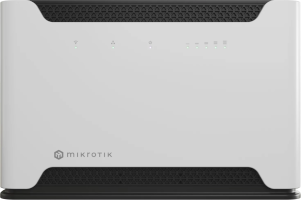
Chateau LTE7 (D53G-5HacD2HnD-TC&R11e-LTE7)
Our most versatile home router, featuring the new CAT7 modem and a speedy quad-core CPU for all your household network security and management tasks. Dual-band, dual-chain Wi-Fi, 5x Gigabit ports, and full RouterOS v7 features – all at a significantly lower price than the previous LTE6 version.Perfect for secure VPN work, home offices, or small business networks that care about both function and aesthetics.
Quickstart
Please follow these quick steps to set up your device:
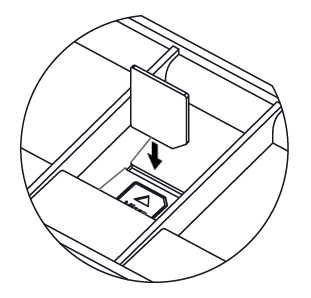
- Insert a SIM card into the slot as indicated on the device;
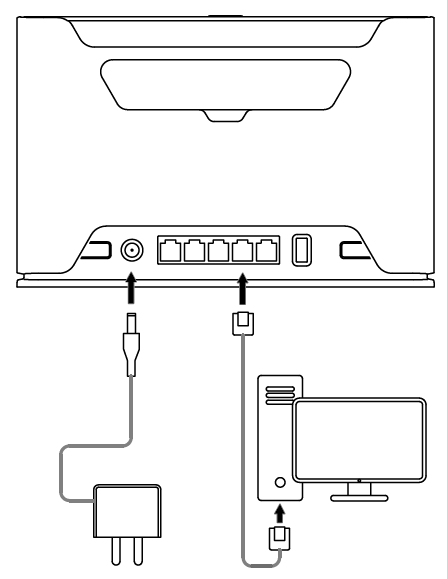
- Connect the device to the power source;
- Connect to the device through either one of the Ethernet ports or the wireless network "MikroTik-..." (ensure to check the wireless passwords on the sticker);
- Establish a connection using a mobile application. Alternatively, use WebFig in a web browser or the "WinBox" configuration tool at https://mt.lv/WinBox; multiple configuration methods are available to ensure accessibility;
- Start configuration within the chosen tool, using the default IP address 192.168.88.1. If the IP address is unavailable, use WinBox and choose the "Neighbors" tab to find the device;
- Proceed to connect using the MAC address. The username is "admin", and there is no password (or, for some models, check user and wireless passwords on the sticker);
- Click the "Check for updates" button and update RouterOS to the latest version. A valid SIM card must be inserted along with an active Internet connection, for updates to work;
- For a manual update of the device, visit mikrotik.com, select your model, and locate the required packages in the "Downloads" section;
- Upload downloaded packages to the WebFig or WinBox "Files" menu and reboot the device;
- By upgrading your RouterOS software to the latest version, you can ensure optimal performance, stability, and security updates;
- In the "QuickSet" menu set up the following: Choose your country, to apply country regulation settings;
- Set up your wireless network password in the left field;
- Set up your router password in the bottom field.
Connecting with a mobile app
Use your smartphone to access your router through WiFi.

- Insert a SIM card into the slot as indicated on the device and power on the device; if you want to use eSIM, read the eSIM section;
- Scan the QR code and choose your preferred OS.
- Install and open the application.
- Click Connect to establish a connection to your device through a wireless network (check the wireless passwords on the sticker).
- The username is "admin" and there is no password (or, for some models, check user and wireless passwords on the sticker).
- Choose Quick Setup and the application will guide you through all basic configuration settings in a couple of easy steps.
- An advanced menu is available to fully configure all necessary settings.
Expansion slots and ports
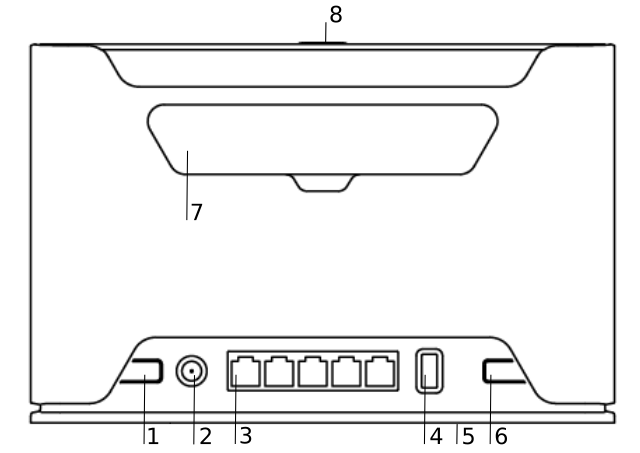
- Reset button.
- Powering DC jack 2.0 mm.
- Five Gigabit ports, supporting automatic cross/straight cable correction (Auto MDI/X). Either straight or crossover cable can be used for connecting to other network devices.
- USB type-A.
- SIM slot for Micro SIM card.
- Mode button.
- Cover for external SMA antenna connector is not provided for models with antennas
- WPS Sync button.
Specifications
| Parameter | Value |
|---|---|
| Product Code | D53G-5HacD2HnD-TC&R11e-LTE7 |
| Architecture | ARM 32bit |
| CPU | IPQ-4019 |
| CPU Core Count | 4 |
| CPU Threads Count | 4 |
| CPU Frequency | 448–896 (auto) MHz |
| Switch Chip Model | IPQ-4019 |
| RAM | 256 MB |
| Storage | 16 MB FLASH |
| RouterOS License | Level 4 |
| Operating System | RouterOS v7 |
| MTBF | Approximately 200,000 hours at 25°C |
| Operating Temperature | -40°C to +70°C |
| 10/100/1000 Ethernet Ports | 5 |
| SIM Slots | 1 (Micro SIM) |
| USB Ports | 1 × USB Type-A (power reset supported, max 1 A) |
| Wireless 2.4 GHz | 300 Mbit/s, 2 chains, 802.11b/g/n, 2 dBi, Wi-Fi 4 |
| Wireless 5 GHz | 867 Mbit/s, 2 chains, 802.11a/n/ac, 4 dBi, Wi-Fi 5 |
| 3G Category | R8 (DL 42.2 Mbps / UL 5.76 Mbps) |
| 3G Bands | 1 (2100 MHz) / 3 (1800 MHz) / 5 (850 MHz) / 8 (900 MHz) |
| LTE Category | 7 (DL 300 Mbps / UL 100 Mbps), 2×2 DL / 1×1 UL |
| LTE modem | R11e-LTE7 |
| TAC | 35312597 |
| MIMO DL | 2x2 |
| MIMO UL | 1x1 |
| LTE Bands (FDD) | 1 (2100 MHz) / 3 (1800 MHz) / 5 (850 MHz) / 7 (2600 MHz) / 8 (900 MHz) / 20 (800 MHz) / 28 (700 MHz) |
| LTE Bands (TDD) | 38 (2600 MHz) / 40 (2300 MHz) / 41 (2500 MHz) |
| DC Inputs | 1 (DC jack) |
| DC Voltage | 12–28 V |
| Max Power Consumption | 20 W |
| Max Power (no attachments) | 14.1 W |
| Cooling | Passive |
| Other | Mode button |
| Dimensions | 240 x 156 x 44 mm |
| Certifications | CE, EAC, ROHS |
| Ingress Protection | IP20 |
Supported 2xCA combinations
| Parameter | Value |
|---|---|
| B1+B1/3/5/7/8/20/28/32/40/41 (100MHz) | B20+B1/3/7/32/38/40 |
| B3+B1/3/5/7/8/20/28/32/40/41 (100MHz) | B28+B1/3/5/7/32 |
| B5+B1/3/5/7/28/40/41 (100MHz) | B38+B38 |
| B7+B1/3/5/8/20/28 | B40+B40 |
| B8+B1/3/7/20/32/40/41 (100MHz) | B41+B41 (100MHz) |
Supported 2×CA (UL) LTE bands (Intra-band contiguous only)
| Parameter | Value |
|---|---|
| B1+B1 | B8+B8 |
| B3+B3 | B38+B38 |
| B5+B5 | B40+B40 |
| B7+B7 | B41+B41 |
Wireless specifications
| Rate (2.4 GHz) | Tx (dBm) | Receive Sensitivity |
|---|---|---|
| 1MBit/s | 23 | -100 |
| 11MBit/s | 23 | -94 |
| 6MBit/s | 24 | -96 |
| 54MBit/s | 21 | -80 |
| MCS0 | 24 | -96 |
| MCS7 | 20 | -75 |
| MCS9 | 19 | -70 |
| MCS11 | 17 | -67 |
| Rate (5 GHz) | Tx (dBm) | Receive Sensitivity |
|---|---|---|
| 6MBit/s | 24 | -96 |
| 54MBit/s | 21 | -80 |
| MCS0 | 24 | -96 |
| MCS7 | 20 | -75 |
| MCS9 | 19 | -70 |
| MCS11 | 17 | -67 |
Mounting
The device is designed to be used indoors, by placing it on the desktop.
We recommend using CAT5 shielded cable. When using and installing this device please pay attention to the Maximum Permissible Exposure (MPE) safety distance with a minimum of 20 cm between the radiator and your body.
Configuration
Configuration can be done using a web browser via WebFig, the WinBox tool https://mt.lv/WinBox, or a Mobile app. Multiple methods are available to ensure accessibility.
To access WebFig, open http://192.168.88.1 in your browser.
For WinBox, download the tool, go to the Neighbors tab, and click on the MAC address.
The default username is "admin", please find the password on the device sticker.
We recommend checking for updates frequently to ensure your RouterOS software remains up to date for the best performance and stability. Click the "Check for updates" button in WinBox or WebFig to update to the latest version.
A valid SIM card must be inserted along with an active Internet connection, for updates to work.
RouterOS offers many additional configuration options beyond those described in this document. For more details, please visit https://mt.lv/help.
For recovery purposes, the device can be booted into reinstallation mode. See the section Buttons and Jumpers section for instructions.
Mode button
The Mode button is located on the back of the unit, on the right-hand side. By default, the Mode button is configured to control dark mode.
To turn off all LEDs, briefly press the Mode button once.
To turn the LEDs back on, press the button again.
The button can also be configured in RouterOS to execute user-defined scripts.
Sync button
The sync button is located on the top of the unit. WPS Sync button, if configured on the wireless interface, can be used to connect new clients.

- Press and hold the WPS button for 1 – 5 seconds to enable WPS for wireless interfaces.
Front LED status

- Wireless network activity.
- Ethernet port activity.
- System LED.
- Signal strength.
Cellular connection technology based on the System LED color:
Red: GSM
Yellow: 3G
Blue: LTE
Green: 5G NSA
Violet: 5G SA
When LTE is not connected to the network, the system LED will blink red to indicate that there is some issue with the LTE connection. If the LTE interface is intentionally disabled (not being used), the system LED will glow blue.
SIM slot usage
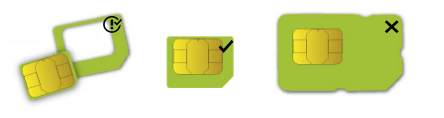
SIM card slot is designed to use with Micro SIM cards.
Nano SIM cards have different thicknesses, usage with an adapter is not recommended.
Reset button
The reset button has three functions:
- Hold this button during boot time until the green LED light starts flashing, release the button to reset RouterOS configuration (total 5 seconds).
- Keep holding for 5 more seconds, LED turns solid, release now to turn on CAP mode. The device will now look for a CAPsMAN server (total of 10 seconds).
- To reinstall RouterOS using the Netinstall utility, enter the device into BOOTP mode. There are two types of booters available: the regular booter and the backup booter.
- Regular booter - Power on the device, wait 1-2 seconds, then press and hold the Reset button. Wait until the System LED is blinking green, then turns solid "On". When the green LED turns "Off", release the Reset button - the device will enter BOOTP mode.
- Backup booter – Power off the device, press and hold the Reset button, then power it on. Wait until the System LED is blinking green, then solid "On". When the green LED turns "Off", release the Reset button - the device will enter BOOTP mode using the backup booter.
Regardless of the above option used, the system will load the backup RouterBOOT loader if the button is pressed before power is applied to the device. Useful for RouterBOOT debugging and recovery.
Netinstall
When performing Netinstall, make sure to use the latest v7 version of both ROS files and the Netinstall software.
Accessories
The package includes the following accessories that come with the device:
- ADAPT1_ EU/US Switching Power Supply 24V, 1.2A.
- CAB3_ CAT5E UTP Flat Cable, 8P8C, AWG32, 1.5m.
Removing back cover to access PCB
In case there is a need to access PCB, the back cover can be removed.
- Remove center screw;
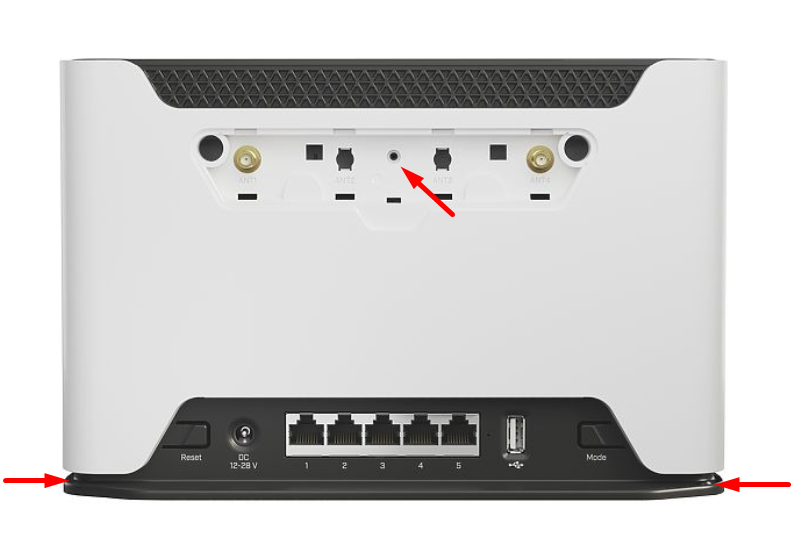
- Use a small screwdriver to pry open backplate in marked spots;
- Continue to pry it open by going up;
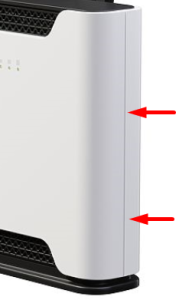
- At the end lift off the whole backplate.
Operating system support
The device supports RouterOS software version v7 or later. The specific factory-installed version number is indicated in the RouterOS menu "/system resource". Other operating systems have not been tested.
Navigate to: Documents→ Safety and Regulatory Information