
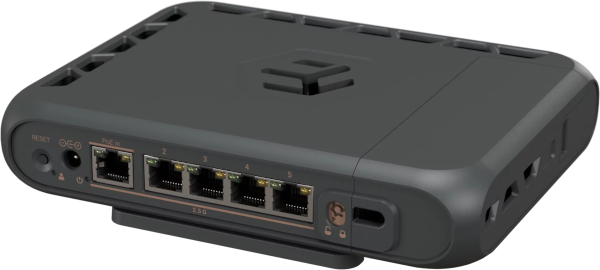
hAP be³ Media - MA53UG+HbeH
The professional all-in-one platform for routing, services, containers, and modern network workloads. This is a powerful Wi-Fi 7 hybrid router and media hub combining triple-band wireless, five 2.5G Ethernet ports, built-in Matter/Thread smart automation/IoT support, and a quad-core ARM CPU for containers, storage, and advanced networking.
Triple-band 2x2 MIMO Wi-Fi 7.
The hAP be³ Media delivers true Wi-Fi 7 performance across the 2.4, 5, and 6 GHz bands. Expect higher throughput, lower latency, improved security, and better spectral efficiency. The wide 6 GHz band offers more clean spectrum, helping reduce congestion in busy environments.
Also, hAP be³ Media supports Wi-Fi 7 Multi-Link Operation (MLO) in TR-MLMR (AP mode).
Whether you are running a multi-device setup, a network lab, workstations, VR headsets, NAS backups, cloud sync, or high-resolution media streaming, everything can run simultaneously without competing for airtime. More bands mean more capacity, smoother performance, and a wireless experience that finally keeps up with modern workloads.
- 2.4 GHz antenna gain: 4 dBi
- 5 GHz antenna gain: 7.5 dBi
- 6 GHz antenna gain: 8 dBi
2.5 Gigabit Ethernet on all ports
That’s right – no more bottlenecks! Ultra-fast ISP uplink, NAS servers, workstations – you can have it all!
A modern hybrid media center
With USB-C, two USB-A ports, and an microSD card slot, hAP be³ Media becomes the heart of your local media storage. Use flash storage for backups, photos, video surveillance footage or a private family cloud.
Self-hosted password managers, documents and services – that is the way in 2026, if you care about privacy and security. Store automation data and container workloads without relying on external servers. Everything stays fast, local, and fully under your control. Also, with the MikroTik BTH app and the improved File share functionality in WinBox, you can share large files without worrying about expired links, delays or privacy.
Matter matters: smart Internet-of-things integration has never been easier
With Wi-Fi 7, Bluetooth 5.4, and RouterOS v7, hAP be³ Media provides a solid foundation for modern IoT setups. A built-in Thread radio and full container support allow users to deploy Thread IoT automation solutions that remain local, private, and fully customizable.
Impressive quad-core performance for container-heavy, creative workflows
Powered by a modern 1.5 GHz quad core CPU and built on an efficient ARM64 architecture, hAP be³ Media is ready for far more than traditional networking. Containers, local dashboards, scripting, complex firewall rules, encryption, multiple VPNs, BGP and advanced routing all run smoothly on a single, compact device. This is performance you can rely on today, and capacity that will stay ahead of your everyday needs for years to come.
And if you think containers are complicated – think again! We’ve included a simple one-click setup page in WinBox where you can enable the desired container apps.
From visualizing network topology and hosting lightweight websites to running custom dashboards, security tools or even experimental local AI assistants, containers open the door to a whole new set of possibilities.
As always, the full feature set of hAP be³ Media is available to you without any subscriptions or paywalls. You buy it – you own it, that’s a MikroTik guarantee!
Powering
- Number of DC inputs: 2 (DC jack, PoE-IN).
- PoE-in input Voltage: 24-57 V.
- DC jack input Voltage: 24-57 V.
- Power adapter nominal voltage 24 V.
- Power adapter nominal current 1.5 A.
- Max power consumption (without attachments) 20 W.
- Max power consumption 29 W.
Setup
- Ensure your Internet Service Provider (ISP) allows hardware changes and automatically assigns an IP address;
- Connect the ISP cable to the Ethernet1 port;
- Connect the device to the power source;
- Connect to the device through any of the ports, excluding Ethernet1, or the wireless network "MikroTik-..." (ensure to check the wireless passwords on the sticker); multiple configuration methods are available to ensure accessibility;
- Establish a connection using a mobile application. Alternatively, use WebFig in a web browser or the "WinBox" configuration tool at https://mt.lv/WinBox;
- Start configuration within the chosen tool, using the default IP address 192.168.88.1. If the IP address is unavailable, use WinBox and choose the "Neighbors" tab to find the device;
- Proceed to connect using the MAC address. The username is "admin", and there is no password (or, for some models, check user and wireless passwords on the sticker);
- Click the "Check for updates" button and update RouterOS to the latest version;
- For a manual update of the device, visit mikrotik.com, select your model, and locate the required packages in the "Downloads" section;
- Upload downloaded packages to the WebFig or WinBox "Files" menu and reboot the device;
- By upgrading your RouterOS software to the latest version, you can ensure optimal performance, stability, and security updates;
- In the "QuickSet" menu set up the following: Choose your country, to apply country regulation settings;
- Set up your wireless network password in the left field;
- Set up your router password in the bottom field.
Configuration
Full RouterOS documentation is located here: https://mt.lv/help
The device comes pre‑configured as a router: the WAN port (Ethernet1) is protected by a firewall and runs DHCP, while all other Ethernet ports and the wireless interface are part of the LAN bridge.
To set up the device, connect the ISP cable to the Ethernet1 port and plug the unit into a power source. Then access the device using any Ethernet port except Ethernet1, or join the default Wi‑Fi network named “MikroTik‑…”. The Wi‑Fi password is printed on the sticker attached to the device.
You can connect via the mobile app, WebFig in a web browser, or the WinBox tool (download from https://mt.lv/WinBox). Start configuration with the default IP address 192.168.88.1; if that address is unreachable, open WinBox, go to the “Neighbors” tab, and discover the device.
For recovery, the firmware can be reinstalled over the network using the Reset button.
Extension Slots and Ports
| Parameter | Value |
|---|---|
| Product Code | MA53UG+HbeH |
| Architecture | ARM 64bit |
| CPU | IPQ-5322 |
| CPU Core Count | 4 |
| CPU Threads Count | 4 |
| CPU Frequency | Up to 1.5 GHz |
| Switch Chip Model | QCA8386 |
| RAM | 2 GB |
| Storage | 512 MB NAND |
| 2.5G Ethernet Ports | 5 |
| USB Ports | 3 × USB 3.0 Type-A (max 1.5 A) |
| Wireless 2.4 GHz | 574 Mbit/s, 2 chains, 802.11b/g/n/ax/be, 4 dBi, IPQ-5322, Wi-Fi 7 |
| Wireless 5 GHz | 1200 Mbit/s, 2 chains, 802.11a/n/ac/ax/be, 7.5 dBi, QCM-8083, Wi-Fi 7 |
| Wireless 6 GHz | 2 chains, 802.11ax/be, 8 dBi, QXM-8086, Wi-Fi 7 |
| WiFi Class | AX1800 |
| Operating System | RouterOS v7 |
| RouterOS License | Level 6 |
| Operating Temperature | -30 °C to +50 °C |
| Cooling | Passive |
| DC Inputs | 2 (DC jack, PoE-in) |
| DC Jack Voltage | 24–57 V |
| PoE-in Standard | 802.3af/at |
| PoE-in Voltage | 24–57 V |
| Max Power Consumption | 29 W |
| Max Power (no attachments) | 20 W |
| Certifications | CE, FCC, IC, EAC, RoHS |
| Ingress Protection | IP20 |
| CPU Temperature Monitor | Yes |
| Bluetooth | 5.4 |
Buttons and jumpers
The reset button has three functions:
- Hold this button during boot time until the green LED light starts flashing, release the button to reset RouterOS configuration.
- Keep holding the reset button until the LED turns solid, then release it to enable CAP mode. The device will then start searching for a CAPsMAN server.
- To reinstall RouterOS using the Netinstall utility, enter the device into BOOTP mode. There are two types of booters available: the regular booter and the backup booter.
- Regular booter - Power on the device, wait 1-2 seconds, then press and hold the Reset button. Wait until the System LED is blinking green, then turns solid "On". When the green LED turns "Off", release the Reset button - the device will enter BOOTP mode.
- Backup booter – Power off the device, press and hold the Reset button, then power it on. Wait until the System LED is blinking green, then solid "On". When the green LED turns "Off", release the Reset button - the device will enter BOOTP mode using the backup booter.
Regardless of the above option used, the system will load the backup RouterBOOT loader if the button is pressed before power is applied to the device. Useful for RouterBOOT debugging and recovery.
Operating system support
The device supports RouterOS software version 7 or above. The specific factory-installed version number is indicated in the RouterOS menu /system resource. Other operating systems have not been tested.